Ports used by EZCast Pro
Please refer to the tables below for EZCast Pro port information.
Ports by Service
| Port | Type | Tx / Rx | Description |
|---|---|---|---|
| 53 | TCP | Rx | DNS server |
| 53 | UDP | Rx | Google Cast |
| 67 | UDP | Tx | DHCP server |
| 68 | UDP | Rx | DHCP client |
| 80 | TCP | TxRx | AirPlay, Google Cast, Web server, FW OTA |
| 443 | TCP | TxRx | AirPlay, Google Cast, FW OTA |
| 554 | TCP | TxRx | RTSP AirPlay |
| 1900 | UDP | Rx | Google Cast / DLNA |
| 2425 | TCP | TxRx | TX <-> RX |
| 2869 | TCP | TxRx | DLNA |
| 3689 | TCP | TxRx | AirPlay |
| 5297 | TCP | TxRx | Bonjour |
| 5289 | TCP/UDP | TxRx | Bonjour |
| 5353 | UDP | TxRx | Bonjour, AirPlay, Google Cast |
| 7000 | TCP | Rx | AirPlay |
| 7001 | TCP | Rx | AirPlay |
| 7100 | TCP | Rx | AirPlay |
| 7236 | TCP | Rx | RTSP Miracast |
| 8008 | TCP | Rx | Google Cast |
| 8009 | TCP | Rx | Google Cast |
| 8080 | TCP | Rx | Web server |
| 25030 | TCP | TxRx | Miracast HDCP |
| 49159 | UDP | TxRx | Bonjour, AirPlay |
| 41963 | UDP | TxRx | Bonjour, AirPlay |
| 63630 | TCP | TxRx | TX <-> RX |
Firmware updates over the Internet (OTA)
To download firmware updates over the Internet, the EZCast Pro device needs an outbound connection to:
| Source | Destination (FQDN) | Protocol | Destination port | Purpose |
|---|---|---|---|---|
| EZCast Pro device | ota.nimbletech.com.tw | TCP | 443 | Download firmware updates |
This firewall rule applies to OTA firmware downloads. The device also needs access to the DNS and NTP services provided by your network for name resolution and time synchronisation.
How to query ports used by EZCast Pro
Are certain features such as Google Cast not working when connecting to EZCast Pro via your network infrustructure? Microsoft has a Graphical User Interface tool called PortQueryUI which can be used to troubleshoot these kinds of scenarios with port connectivity issues. You can use this tool to troubleshoot TCP/IP connection issues. The utility reports the port status of TCP and UDP ports on a device that you select.
Download PortQueryUI.exe
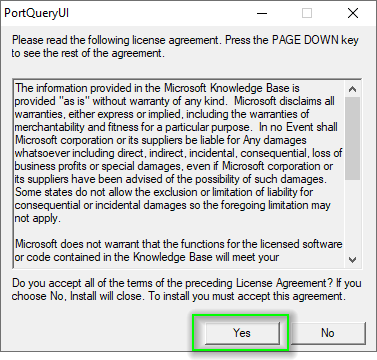
- Download and launch the tool portqueryui.exe. Accept the license agreement and proceed:
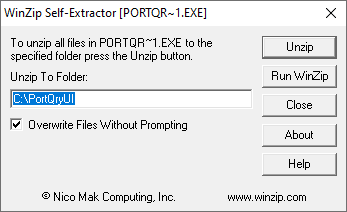
- Choose a location to extract the files:
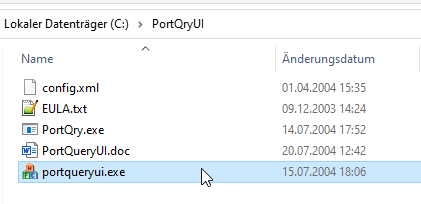
- You don't need to install
PortQueryUI.exe, simply run it by double clicking on it:
Query Ports
- Make a note of the Infrastructure IP address which is displayed on the bottom left of the landing page:
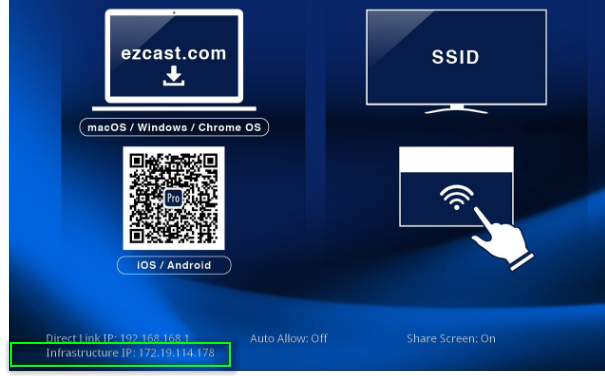
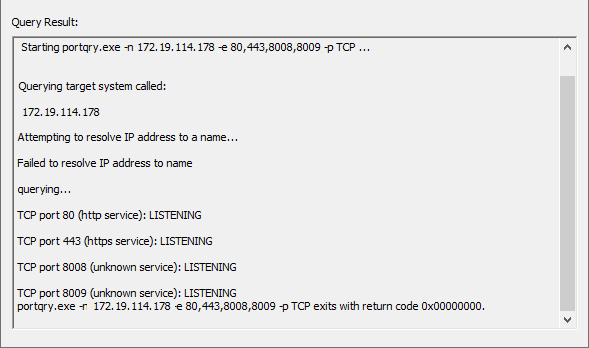
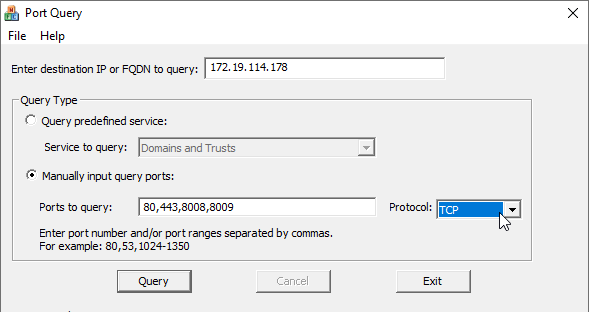
In the destination IP field, enter the infrastructure IP address. Then specify the ports to be checked and click Query, for example:
For the Google Cast service:
Ports to query= 80,443,8008,8009Protocol= TCP
More Information
PortQueryUI.exe reports the status of a TCP/IP port in one of the following three ways:
LISTENING
A process is listening on the port on the EZCast Pro device that you selected. PortQueryUI.exe received a response from the port.
NOT LISTENING
No process is listening on the target port on the target system. Please check your infrstructure in order to allow network connections for this port.
Filtered
The port on the computer that you selected EZCast Pro device is being filtered. PortQueryUI.exe didn't receive a response from the port. A process may or may not be listening on the port. By default, TCP ports are queried three times, and UDP ports are queried one time before a report indicates that the port is filtered.