Intuitive Welcome Page for EZCast Pro
The default welcome page of the EZCast Pro Dongle II and EZCast Pro Box II can be replaced with a custom background image. This allows you to display personalised connection instructions, logos or other information for users.
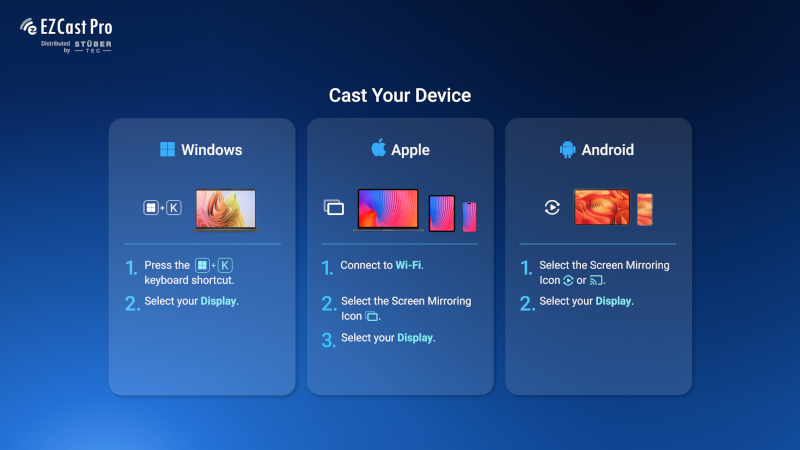
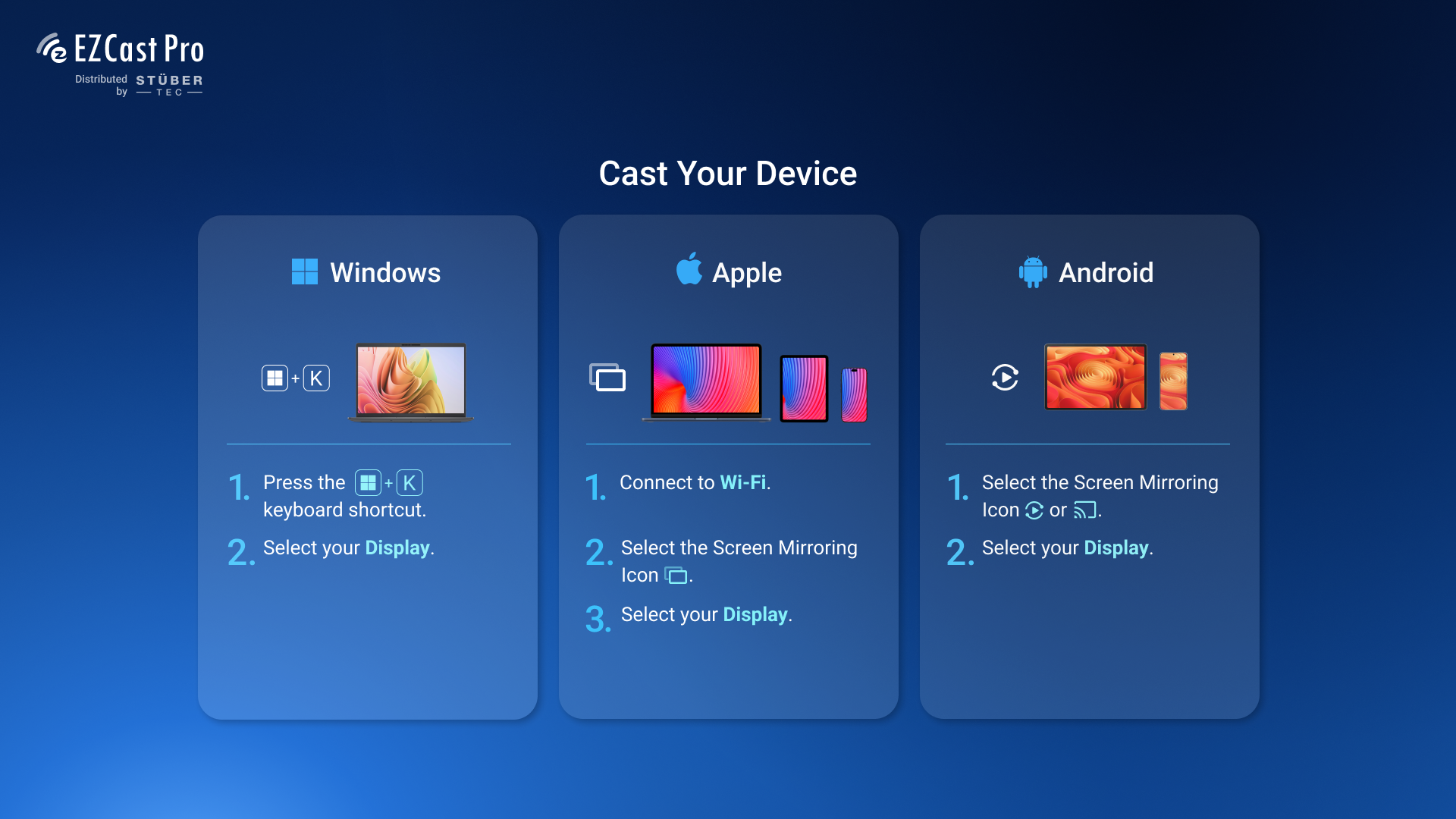
We provide a free, redesigned welcome page featuring clear, step-by-step instructions for wireless screen mirroring from Windows, Apple and Android devices.
Before and After
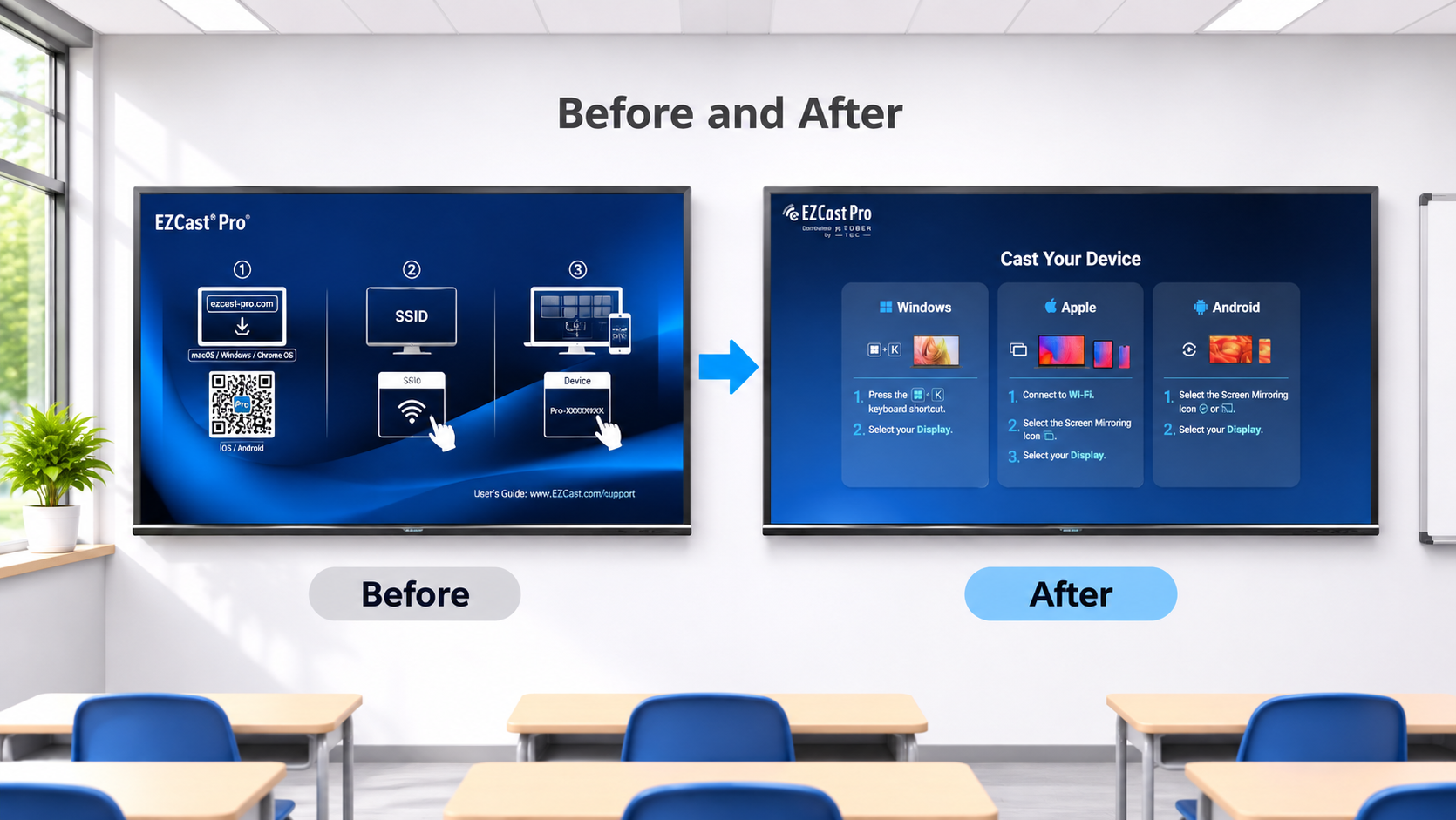 AI-generated
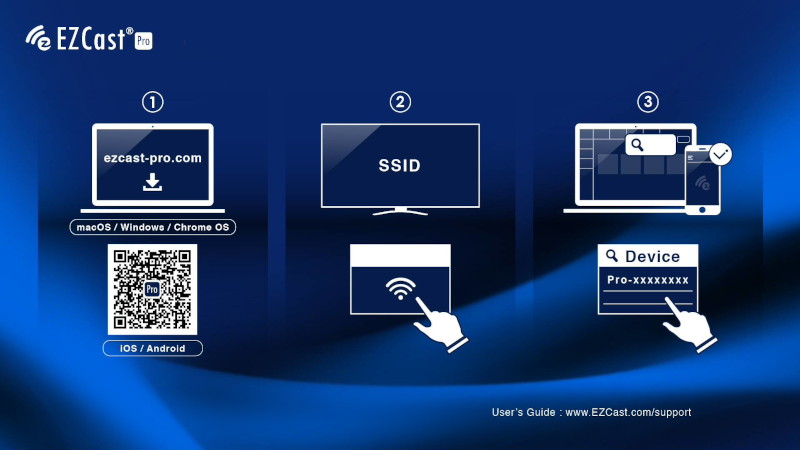
The new welcome page replaces the manufacturer's more complicated English-language layout with clear, step-by-step instructions in German, helping users mirror their screens to the display quickly and easily.
This is particularly helpful in schools, conference rooms and other environments where different users frequently connect their devices.
Before
After
Download New Welcome Page
The standard welcome page is available free of charge and can be configured either through the EZCast Pro Dongle II's web interface or centrally through Confire Cloud.
Customised Welcome Page
On request, we can also create a customised welcome page for your school, organisation or business.
This can include, for example:
- Your logo and corporate branding
- Your Wi-Fi network name (SSID), optionally with a QR code for quick and easy connection
- The display name of your EZCast Pro devices or connected displays
- Custom connection instructions and information
This gives users the information they need directly on the display, helping them connect their devices quickly and easily.
If you are interested in a customised welcome page, contact us for a no-obligation quote.
Change the Welcome Page
There are two ways to configure the new welcome page.
Change the Welcome Page on a Single Device
You can change the background image directly through the built-in web interface of the EZCast Pro Dongle II or EZCast Pro Box II.
- Open the web interface of your EZCast Pro device.
-
Navigate to Settings and select My Screen.

-
Upload your preferred background image.
Change the Welcome Page Centrally on Multiple Devices
If you manage multiple EZCast Pro devices, we recommend our cloud-based management platform Confire Cloud.
With Confire Cloud, you can centrally upload, store and distribute background images to multiple devices at the same time. For example, you can give every display in a school or business the same welcome page without having to configure each device individually.
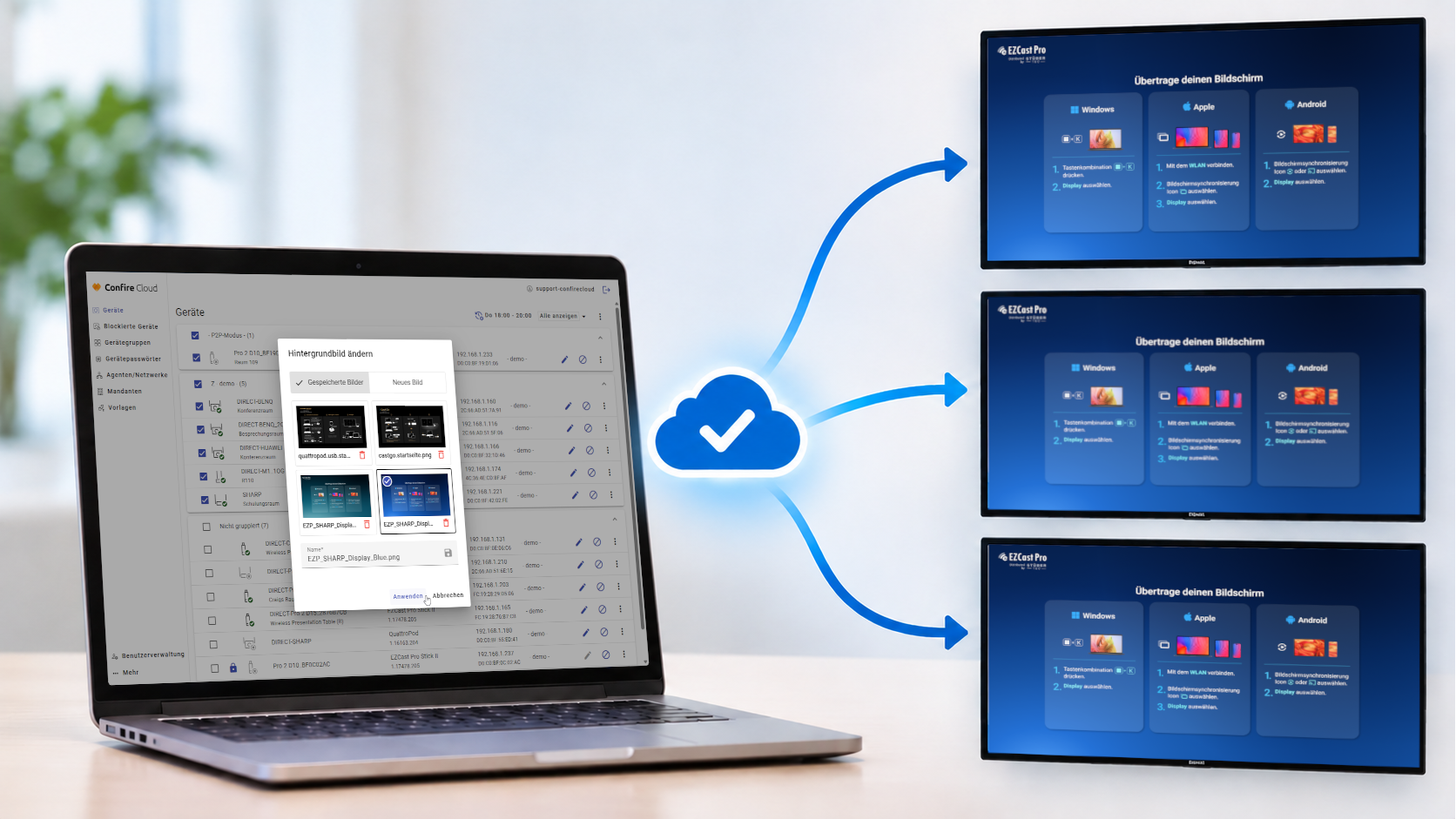 AI-generated
Background images can be stored directly in Confire Cloud, so an external web server is no longer required.
For detailed instructions, see Confire Cloud – Change Background Image.
Try Confire Cloud for Free
Want to manage your EZCast Pro devices centrally? Request a free 30-day trial of Confire Cloud and discover the benefits of centralised device management.